Fart Together graphic quality: PC Settings Guide
Improve Fart Together graphic quality with practical PC checks, conditional graphics tips, and a clear guide to balancing image clarity and performance.
A badly timed hitch can spoil a narrow boat turn, making Fart Together graphic quality about more than how the game looks. Clear obstacles and consistent motion matter when every burst of propulsion changes your team’s direction. This guide explains how to approach Fart Together graphic quality on PC without relying on invented presets, unsupported FPS promises, or settings the available documentation does not confirm.
The practical goal is simple: make the course easy to read while keeping movement smooth. Below, you’ll find the documented PC requirements, a repeatable testing method, and conditional adjustments to try only if your installed version actually offers them.
What Is Confirmed About Fart Together’s Graphics?
Fart Together’s official Google Play listing describes a physics-based boat-navigation game with solo play and cooperative play for up to four people. Players coordinate propulsion and steering through obstacle courses, including tight passages and moving hazards.
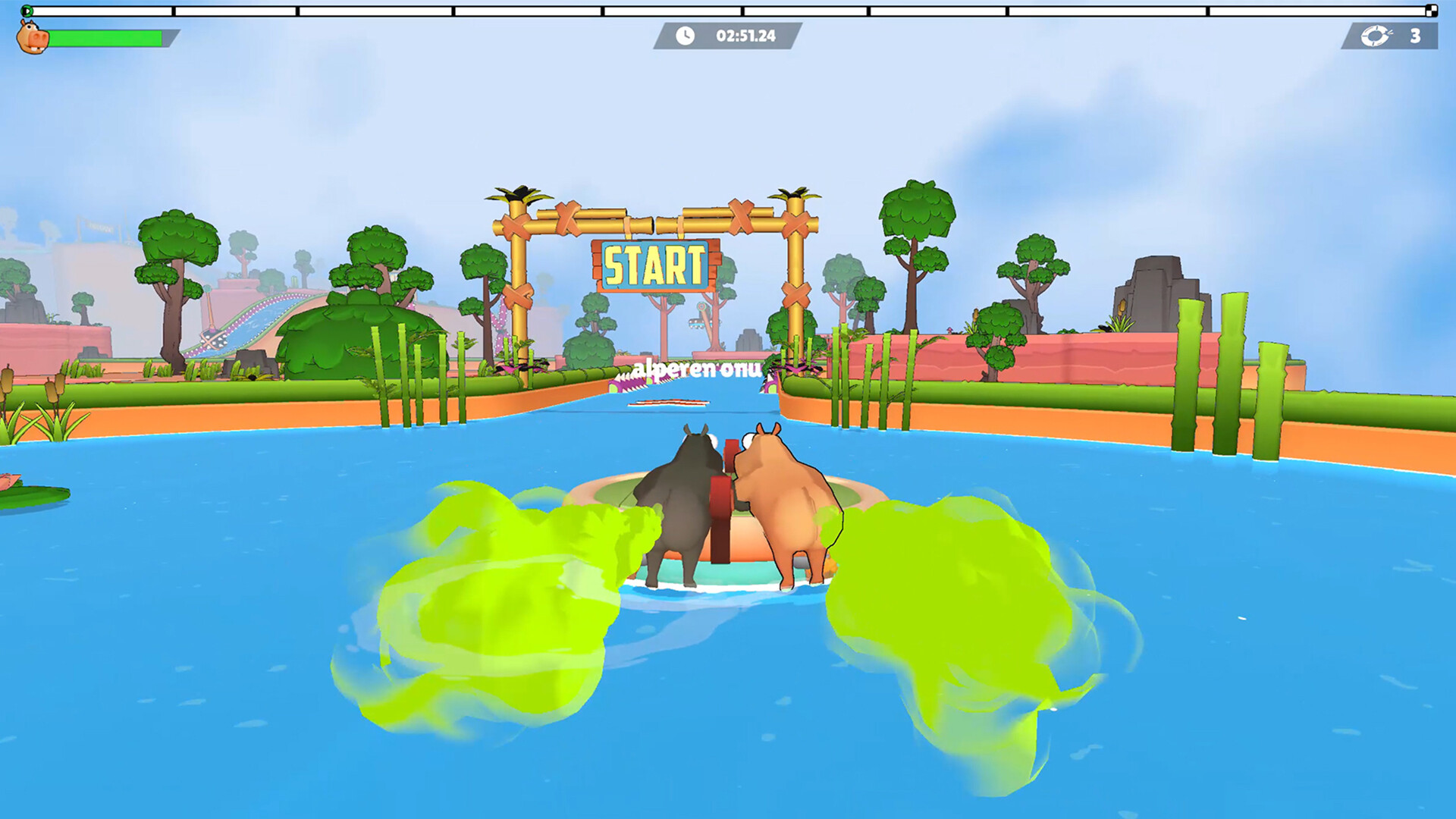
Official screenshot · Source: Steam store
That makes visual readability a sensible priority. You need to judge the boat’s position, recognize an approaching obstacle, and see whether your last input helped or made things worse.
However, the available store information does not document a graphics menu, named quality presets, supported resolutions, frame-rate limits, or advanced rendering features.
| Detail | What the available source establishes | What remains unverified |
|---|---|---|
| Gameplay | Physics-based boat movement and obstacle navigation | Performance demands in specific courses |
| Player count | Solo play and co-op for up to four players | Whether player count changes rendering load |
| PC access | A Google Play Games on PC listing is available | Feature parity with other storefront versions |
| Graphics controls | No detailed settings list is provided | Presets, anti-aliasing, shadows, or resolution scaling |
| Performance | PC platform requirements are displayed | Measured FPS on particular hardware |
For the underlying information, see the official Fart Together Google Play Games on PC listing.
The supplied Microsoft Store page did not expose readable product details, so it cannot establish additional graphics features. Recommendations here are therefore general PC troubleshooting advice, not tested Fart Together benchmarks or community reports.
Check the PC Requirements Before Changing Settings
Before troubleshooting Fart Together graphic quality, confirm that your PC meets the requirements displayed for Google Play Games on PC. A graphics adjustment cannot compensate for an unsupported platform configuration.
The requirements shown on the listing are important context, but they are not a promise of a particular resolution, preset, or frame rate.
| Component | Requirement displayed on the listing | What to check |
|---|---|---|
| Operating system | Windows 10, version 2004 | Confirm your Windows version and install supported updates |
| Graphics | Intel UHD Graphics 630 or comparable | Identify your GPU rather than guessing from the PC’s age |
| Processor | Four physical CPU cores | Check the processor specifications |
| Memory | 8 GB RAM | Close unnecessary memory-heavy applications |
| Storage | SSD with 10 GB available | Check both drive type and free space |
| Account | Windows administrator account | Ensure you can complete required setup |
| Virtualization | Hardware virtualization enabled | Check its status before troubleshooting platform startup |
Separate platform requirements from game performance
Google Play Games on PC introduces a platform layer that has its own requirements. Meeting those requirements does not establish that Fart Together will maintain 60 FPS, run at maximum quality, or behave identically to a separate Windows release.
Likewise, the listed 10 GB of free storage should not be presented as the game’s confirmed download size.
If the game will not launch, address compatibility and setup first. If it launches but feels uneven, move on to performance testing. If it runs smoothly but looks blurry, focus on image clarity instead.
Establish a clean baseline
Restart the PC, connect a laptop to power, and close unnecessary downloads, browser tabs, and recording applications. Check for game updates and use official sources for graphics-driver updates.
These steps do not guarantee higher performance. They reduce avoidable interference so that later comparisons are more meaningful.
How to Tune Fart Together Graphic Quality
The best starting point for Fart Together graphic quality is the configuration that keeps obstacles readable and motion consistent. That may not be the configuration with the most visual effects.
First, inspect the settings available in your installed version and, separately, any relevant platform controls. Do not assume an option exists because another game includes it.
The following table is a conditional checklist, not a confirmed list of Fart Together settings.
| Control, if available | Potential benefit | Trade-off to watch |
|---|---|---|
| Resolution or render scale | Lower values can reduce GPU workload | Softer edges and less readable distant obstacles |
| Overall quality preset | Provides a quick baseline comparison | May change several unrelated features at once |
| Shadows | Lower settings can reduce rendering work | Less depth information or visual grounding |
| Anti-aliasing | Can reduce jagged edges | Some methods soften detail or add rendering cost |
| Motion blur | Disabling it may improve clarity during movement | Changes the appearance of motion, not necessarily performance |
| Frame-rate limit | May help maintain a sustainable output rate | A low limit can make controls feel less immediate |
Start with clarity, then remove expensive extras
If the game offers resolution controls, begin with an image that looks sharp on your display. Lower resolution only when performance gives you a reason to do so.
A lower rendering resolution can help when the GPU is the limiting factor, but it will not solve every hitch. Background activity, CPU load, platform overhead, or other issues can also affect smoothness.
If individual graphics options exist, try reducing nonessential visual effects before sacrificing substantial image clarity. Make one adjustment, test it, and keep it only if the result is better.
Treat frame-rate targets as goals, not promises
A stable 60 FPS is a useful general target on a 60 Hz display, but no supplied benchmark establishes that Fart Together will achieve it on specific hardware.
For context, 60 FPS gives each frame roughly 16.7 milliseconds; 30 FPS gives it about 33.3 milliseconds. These are mathematical frame intervals, not measurements from this game.
Consistency matters alongside the average. Frequent spikes can make motion feel uneven even when an FPS counter usually looks acceptable.
Do not use image quality to diagnose every co-op problem
Lowering Fart Together graphic quality is not a universal fix for multiplayer trouble. A locally choppy image and a shared boat responding unexpectedly are different symptoms.
If motion remains smooth but actions seem delayed during co-op, investigate the connection and session behavior rather than repeatedly reducing resolution. Graphics settings cannot correct mistimed teamwork, either.
Use a Repeatable Test Instead of Guessing
A useful graphics comparison needs a consistent route and a clear record of what changed. Otherwise, a harder obstacle or different teammate input can make one configuration seem worse unfairly.
Start solo to reduce variation, then verify the result in the mode you actually intend to play.
| Step | What to do | What to record |
|---|---|---|
| 1. Select a route | Choose an accessible section with turns and obstacles | Where the test starts and ends |
| 2. Capture the baseline | Play without changing settings | Clarity, smoothness, and noticeable hitches |
| 3. Change one control | Adjust one available graphics option | The original and new values |
| 4. Repeat the route | Follow a similar path at a similar pace | Whether the same problems recur |
| 5. Check typical play | Test your preferred solo or co-op setup | Whether the improvement carries over |
| 6. Save the result | Keep or reverse the change | Your preferred configuration |
Spend a few minutes on each comparison rather than judging from a stationary menu. Movement is where blurred edges, uneven frame delivery, and difficulty reading obstacles become noticeable.
If an FPS display is available through your platform or monitoring software, use it as supporting evidence. Do not let a higher number outweigh visibly worse readability.
Use a simple three-part score
You can compare Fart Together graphic quality without specialized tools. Rate each configuration from 1 to 5 in three areas:
- Clarity: Can you distinguish the boat, course edges, and approaching hazards?
- Smoothness: Does motion remain consistent through turns and obstacle sections?
- Responsiveness: Do your inputs feel predictable during repeated maneuvers?
For example, a configuration scoring 5 for clarity but 2 for smoothness may be less useful than one scoring 4 in both categories. This is a personal comparison method, not an official performance rating.
Keep a short note of the winning setup so an update or accidental change does not erase your baseline.
Troubleshoot Blur, Stutter, and Uneven Performance
Choose your next action from the symptom, not from a generic “best settings” list.
| Symptom | First checks | What not to assume |
|---|---|---|
| Soft or blurry image | Available resolution, render scale, and motion-related options | That every blur effect can be disabled |
| Constantly choppy motion | Background load, power mode, and available quality controls | That the GPU is always responsible |
| Occasional pauses | Updates, downloads, recording software, and repeatability | That lowering every setting will fix them |
| Smooth image but delayed co-op actions | Connection conditions and whether solo behaves differently | That visual quality causes network delay |
| Performance worsens over time | Ventilation, power state, and background activity | That the initial settings comparison remains valid |
For laptops, test while connected to power and place the machine on a firm surface with unobstructed vents. Power-saving behavior and heat can affect sustained performance, so compare configurations under similar conditions.
On systems with multiple GPUs, verify which graphics processor runs the game or its PC platform before making assumptions. A Windows graphics preference may help in some configurations, but its effect depends on the application and hardware.
Avoid random configuration files or “FPS booster” downloads advertised as guaranteed fixes. The available documentation does not establish supported launch commands or hidden graphics variables. Make reversible changes through exposed controls first.
Ultimately, better Fart Together graphic quality means a clearer, steadier experience on your machine—not blindly selecting the highest preset or copying an unverified configuration.
FAQ
What are the best Fart Together graphic quality settings?
There is no verified universal preset in the supplied documentation. Start with the available defaults, test a repeatable route, and adjust one exposed control at a time. Prioritize readable obstacles and consistent motion over visual effects that make little difference during play.
Can Fart Together run on integrated graphics?
The Google Play Games on PC listing displays Intel UHD Graphics 630 or comparable graphics as a minimum platform requirement. That does not establish a guaranteed FPS result. Your processor, memory, platform configuration, and other system conditions also matter.
Does Fart Together support 4K, DLSS, or ray tracing?
The available source material does not confirm those features. Do not assume support based on your graphics card’s capabilities. Check the installed version’s actual menu and official update information before looking for advanced rendering controls.
Should I lower resolution if the game stutters?
It is a reasonable test if resolution adjustment is available, but it is not a guaranteed fix. Compare the same route before and after the change. If the image becomes blurrier without smoother movement, restore the original value and investigate other causes.
Related Guides
Fart Together controls: Keyboard and Controller Guide
Learn what’s confirmed about Fart Together controls, keyboard play, controller options, accessibility settings, and coordinated raft steering.
Fart Together graphics settings: PC Optimization Guide
Tune Fart Together graphics settings with practical Windows tips, conditional recommendations, and a clear guide to what is and isn't verified.
Fart Together mouse sensitivity: Setup and Fixes
Tune Fart Together mouse sensitivity with practical DPI tests, Windows settings checks, and troubleshooting tips, plus what remains unverified.
Fart Together first time: A Couple's Comfort Guide
Nervous about farting in front of your partner? Learn how to handle the first time, talk about boundaries, and keep an awkward moment comfortable.
Fart Together 2P: Two-Player Co-op Guide and Tips
Explore Fart Together 2P, including two-player support, online co-op details, teamwork tips, PC requirements, and the planned Early Access release.